A Beginner-Friendly Guide to Visual Programming and Creative Coding
When Code Becomes Art
For many beginners, programming feels intimidating. Lines of text, strange symbols, and abstract logic can make learning to code seem dry or even overwhelming. But what if your very first Python program didn’t just print words to the screen — what if it created art?
This is exactly where Python’s turtle module shines.
The first time you watch a small arrow move across the screen, drawing lines as it goes, something clicks. Programming suddenly feels less like math homework and more like drawing with instructions. Each command produces an immediate visual result, turning abstract ideas into something you can see, understand, and enjoy.
In this article, you’ll learn how to use Python’s turtle module to draw your first creative pattern, even if you’ve never written code before. Along the way, you’ll discover how creative coding works, why turtle remains relevant in modern programming education, and how simple logic can generate surprisingly beautiful designs.
Whether you are a student, a self-taught learner, a teacher, or simply curious about creative coding, this guide will walk you step by step from blank screen to colorful patterns — no prior experience required.
What Is Python Turtle?
Python Turtle is a built-in graphics module designed to make programming more accessible, especially for beginners. It is inspired by the Logo programming language developed in the 1960s, which used a “turtle” cursor to teach children logical thinking.
In Python Turtle, you control a virtual turtle that moves around the screen. As it moves, it draws lines based on your instructions. You tell the turtle things like:
- Move forward
- Turn left or right
- Change color
- Adjust speed
Each command produces instant visual feedback.
Why Turtle Still Matters Today
Even in a world filled with powerful graphics libraries, turtle remains valuable because:
- It requires minimal setup
- It provides immediate visual feedback
- It teaches core programming concepts
- It encourages experimentation and creativity
For beginners, seeing the result of each line of code helps build confidence and intuition. Turtle is often used in classrooms, but it is just as effective for adult learners discovering programming for the first time.
Setting Up Your Environment
Before we start drawing, you need a working Python environment.
Step 1: Install Python
If you don’t already have Python installed:
- Go to the official Python website
- Download the latest stable version
- During installation, make sure to check “Add Python to PATH”
Python Turtle comes bundled with standard Python installations, so no extra libraries are required.
Step 2: Choose an Editor
You can use:
- IDLE (Python’s built-in editor)
- VS Code
- PyCharm
- Any editor you are comfortable with
For beginners, IDLE works perfectly fine.
Step 3: Test Turtle
Create a new Python file and type:
import turtle
turtle.done()
Run the file. If a blank window appears, your setup is complete.
Your First Turtle Drawing
Let’s create your first drawing.
Creating the Turtle
Start with this basic setup:
import turtle

screen = turtle.Screen()
t = turtle.Turtle()
screencreates the drawing windowtis your turtle object
Making the Turtle Move
Try this:
t.forward(100)
t.left(90)
t.forward(100)
Your turtle moves forward, turns left, and moves again. Each command corresponds directly to what you see on the screen.
Drawing a Square
Now let’s combine these ideas:
for i in range(4):
    t.forward(100)
    t.left(90)
With just four lines of code, you’ve created a square. This is your first taste of how loops simplify repetition.
From Simple Shapes to Creative Patterns
Simple shapes are just the beginning. The real magic happens when you start combining loops, angles, and colors.
Using Loops for Repetition
Consider this example:
for i in range(36):
    t.forward(100)
    t.left(170)
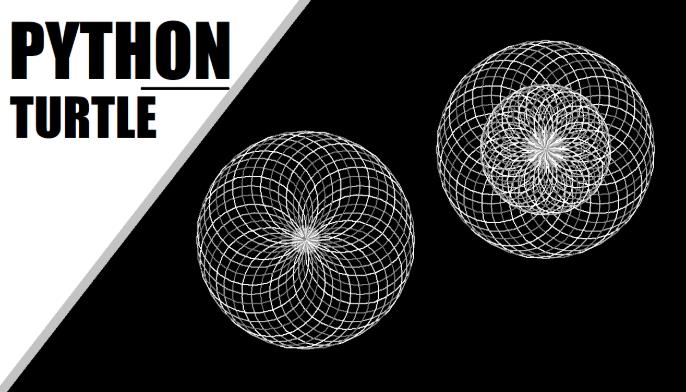
Instead of a square, you now get an intricate star-like pattern. Why? Because the angle doesn’t divide evenly into 360 degrees, causing the turtle to rotate in unexpected ways.
Adding Color
Color brings your drawings to life:
t.color("blue")
t.pensize(2)
You can also change colors dynamically:
colors = ["red", "purple", "blue", "green", "orange"]

for i in range(50):
    t.color(colors[i % 5])
    t.forward(i * 2)
    t.left(59)
This simple loop creates a spiral pattern that looks far more complex than the code behind it.
Controlling Speed
If your drawing feels slow:
t.speed(0)
Setting the speed to zero makes the turtle draw instantly.
Understanding the Math Behind the Art
Creative turtle drawings are not random — they are rooted in basic geometry.
Angles and Rotation
A full circle is 360 degrees. When you draw shapes, the turtle rotates around that circle.
- Square: 90° turns
- Triangle: 120° turns
- Hexagon: 60° turns
But when you use unusual angles like 59° or 137°, patterns begin to emerge through repeated rotation.
Why Patterns Appear
Patterns appear because the turtle revisits similar positions over time. When angles don’t divide evenly into 360, the turtle slowly shifts its orientation, creating symmetry and repetition.
This is an excellent introduction to concepts used later in:
- Computer graphics
- Game development
- Generative art
- Mathematical visualization
Creative Coding as a Learning Philosophy
Creative coding is more than just drawing pictures. It is a mindset that treats programming as a form of expression.
Why Creative Coding Works
Research and classroom experience show that learners retain concepts better when they:
- See immediate results
- Experiment freely
- Make mistakes safely
- Create something personal
Python Turtle encourages all of these behaviors.
Instead of asking, “Is my code correct?” learners ask, “What happens if I change this number?”
That shift transforms learning from memorization into exploration.
Turtle as a Gateway Skill
Many developers who start with turtle move on to:
- Pygame
- Data visualization
- Animation
- Generative AI art
- Interactive design
Turtle builds intuition that transfers directly to more advanced tools.
Common Mistakes and How to Fix Them
Even simple turtle programs can run into issues. Here are common beginner problems and their solutions.
The Window Closes Immediately
Add this at the end of your program:
turtle.done()
This keeps the window open.
The Drawing Is Too Slow
Use:
t.speed(0)
Or reduce unnecessary commands.
The Turtle Draws Off-Screen
Increase screen size:
screen.setup(width=800, height=800)
Or reduce movement distances.
Confusing Left and Right Turns
Remember:
- Positive angles turn left
- Negative angles turn right
Expanding Your Creative Designs
Once you are comfortable with basics, you can explore:
Using Functions
def draw_square(size):
    for i in range(4):
        t.forward(size)
        t.left(90)
Functions allow you to reuse patterns easily.
Using Randomness
import random

t.color(random.choice(["red", "blue", "green"]))
t.forward(random.randint(50, 150))
Randomness introduces organic, unpredictable designs.
Layering Patterns
By combining multiple loops and functions, you can create complex mandala-style drawings using surprisingly little code.
Where to Go Next
Python Turtle is just the beginning.
After mastering turtle, you may want to explore:
- Pygame for interactive graphics
- Matplotlib for data visualization
- Processing or p5.js for creative coding
- Generative art with Python
If you are a teacher or parent, turtle is also a fantastic tool for introducing children to programming concepts without overwhelming them.
Your First Drawing Is Just the Beginning
Learning to code doesn’t have to start with dry exercises or abstract theory. With Python Turtle, your first program can be something you see, control, and enjoy.
By drawing your first creative pattern, you’ve already learned:
- How loops work
- How angles affect movement
- How logic creates visual results
More importantly, you’ve learned that programming can be playful, expressive, and creative.
Every complex system — from games to simulations to AI — is built on simple ideas repeated thoughtfully. Turtle helps you understand those ideas in a way that feels natural and rewarding.
So keep experimenting. Change the numbers. Break the code. Draw something unexpected.
Your turtle is waiting.

Leave a Reply